
Why you should be developing for the Apple ecosystem with Vulkan, and how to do it
Richard S. Wright Jr., LunarG
- June 3, 2021
- Revised April 15, 2022
- Revised January 16, 2024
- Revised March 18, 2024
- Revised January, 2026
If you are reading this, you likely already know what Vulkan is — a low-overhead, high-performance, cross-platform, graphics and compute API designed to take maximum advantage of today’s highly parallel and scalable graphics and compute hardware. To be sure, there are other APIs with this goal such as Microsoft’s DirectX and Apple’s Metal API.
Vulkan however offers the advantage of being cross platform. You can write your graphics engine with Vulkan and optimize your rendering paths based on your unique needs and goals. This code then is ready for Windows, Apple desktops, Linux, and both iOS and Android mobile platforms. Of course writing cross platform code is still a challenge, and different platforms and devices will have benefits and shortcomings you will need to work around. However, implementing your lowest level rendering primitives in multiple graphics API’s does not need to be one of those challenges!
Writing platform specific code does have its advantages, and vendors such as Microsoft and Apple certainly adore having best of breed titles available exclusively for their customers as it adds value to their ecosystem. For developers though, it is often in our best interests to make our products available as widely as possible. Aside from gaming consoles with their mostly closed development environments, Windows, Linux, Apple, and Android combined represent most of the market for developers of end user software and games today.
In the past, we used OpenGL to help with 3D technical applications and games that we wanted to work across platforms. As graphics and compute hardware has evolved, Vulkan has emerged as the new cross-platform API best suited to take maximum advantage of today’s hardware capabilities, and Vulkan is now widely available with native support across a very heterogeneous development landscape and is natively supported on Windows, Linux, and Android operating systems. Just as Microsoft has its own low-level solution in the form of DirectX, Apple’s answer to modern low-level, high-performance graphics is its own Metal API. Apple does not support a mechanism for an alternate low-level graphics driver. Unless this changes, or Apple adopts Vulkan directly, there cannot be a native Vulkan driver for Apple platforms, desktop or mobile. This does not mean however that high-performance Vulkan is not available on Apple hardware.
Vulkan on Metal
Vulkan and Apple’s Metal API are both thin abstractions of graphics and compute hardware with minimal CPU overhead. A layered API approach is nothing new as one similar API can often be emulated by another while still maintaining high-performance. ANGLE for example was used for years to layer a stable OpenGL implementation over Direct X for Microsoft Windows on hardware that native OpenGL may not have been as well supported on. Indeed, now, as native OpenGL driver support is all but extinct, OpenGL is being implemented by third parties on top of Vulkan since native quality Vulkan implementations are now so widely available. In fact, OpenGL is now marked as deprecated on Apple platforms and is being layered on top of Metal to ensure continued application support moving forward. Vulkan too can be layered over Metal, and the modern paradigm of leveraging the GPU and doing as little on the CPU as possible is well leveraged by both Metal and Vulkan on Metal.
There are currently two layered Vulkan implementations using Metal as the base graphics API – MoltenVK, and KosmicKrisp. MoltenVK was the leader and original Vulkan implementation that was widely adopted by the Apple developer community. MoltenVK is not however a fully conformant Vulkan Implementation, and has missing functionality from the base Vulkan API. This has not stopped developers from just implementing their own work arounds to make Vulkan games and applications run well on Apple platforms. More recently, LunarG under sponsorship from Google used the open source Mesa Vulkan driver as the basis for KosmicKrisp, a fully conformant Vulkan implementation that is layered on the Metal 4 API. KosmicKrisp, while fully conformant, does require Metal 4 and will only run on Apple Silicon hardware. The M1 was released some five years ago, and Intel based Mac’s are due to be at the end of support in less than two years. iOS devices are ARM based like Apple Silicon and KosmicKrisp is expected to be iOS ready within the next years timeframe.
Developers can choose either or both of these Vulkan implementations for their shipping application bundles, and it’s fairly straightforward to dynamically select which implementation to use based on the OS version or the underlying hardware. MoltenVK for example could always be used on older Intel Mac’s, while KosmicKrisp could be used moving forward for Apple Silicon devices running macOS 26 or later.
The Vulkan SDK
Your first step to using Vulkan on Apple devices is to obtain the Vulkan SDK from the LunarG web site at http://vulkan.lunarg.com. The Vulkan SDK contains a prebuilt version of both MoltenVK and KosmicKrisp, the Vulkan Loader, headers, libraries, various tools, and the Vulkan Validation Layers.
The Vulkan SDK fully supports Universal Binaries for all components and still supports x86_64 and Apple Silicon hardware. Both the loader and validation layers have been supported on Apple desktop operating systems and iOS devices with all SDK releases since 2024.
Using the Loader
The Vulkan Loader is a dynamic library you link to with your application (Volk can also be used with the loader on macOS if you prefer that approach). On most platforms, this loader is typically referred to as the “Vulkan Runtime” and is installed in a system location where all applications can access it. On Apple platforms you package the loader in your application bundle. This loader is your ‘entry point’ for all Vulkan API function calls. The loader will look for Vulkan drivers (called an ICD) and enumerate them to your application as part of your Vulkan initialization. It will find MoltenVK or KosmicKrisp, or both if you package them both, also to be included neatly in your application bundle.
Note: The Vulkan SDK installer does provide an option to install the Vulkan loader in a system folder (/usr/local/lib), but this is NOT the recommended approach for shipping applications or games on macOS. Having the loader (and Vulkan Layers) in a system location can streamline workflows during development only. For shipping applications, if you require a utility layer, layers can also be included in the application bundle (details later in this document).
The location of the pertinent files in your application bundle on a desktop application would be as follows:
					YourAmazingVulkan.app
    Contents
        Frameworks
            libMoltenVK.dylib
            libvulkan_kosmickrisp.dylib
            libvulkan.1.[version number].dylib
            libvulkan.1.dylib -> (sym link to .dylib above)
        MacOS
            YourAmazingVulkan
        Resources
            vulkan
                icd.d
                    MoltenVK_icd.json
                    libkosmickrisp_icd.json
The above example presumes you wish to be able to select MoltenVK or KosmicKrisp as the driver at runtime. You could leave out the MoltenVK files if for instance you only wished to use KosmicKrisp.
The .json files point to the location of the ICD (driver) files in the /frameworks folder. The important line is the ‘library_path”, for example
"library_path": "../../../Frameworks/libvulkan_kosmickrisp.dylib",
On iOS, the structure is similar, but without the /Contents or /Resources parent folders. Moreover, since Apple’s App store rules prohibit distribution of apps with .dylib’s, the loader, MoltenVK, and all layers are packaged in the SDK (starting in March of 2024) as Frameworks for use on iOS.
					YourAmazingVulkan-iOS.app
    Frameworks
        MoltenVK.framework
        vulkan.framework

        YourAmazingVulkan-iOS

        vulkan
            icd.d
                MoltenVK_icd.json
In addition, the MoltenVK_icd.json file’s path is slightly different for iOS as well as the Frameworks folder is one level less removed, and there is no .dylib file extension:
"library_path": "../../Frameworks/MoltenVK.framework/MoltenVK",
Vulkan Layers
Vulkan layers are a way to inject (or layer) a dynamic library between your Vulkan API calls and the Vulkan driver and device. Some layers will perform API validation for you, some will do logging, and others can add additional functionality to your Vulkan programs. For more information about Vulkan Layers and how to configure them see this Layers Configuration document. Vulkan Layers are supported on the desktop by macOS and for mobile devices on iOS, but not currently for tvOS.
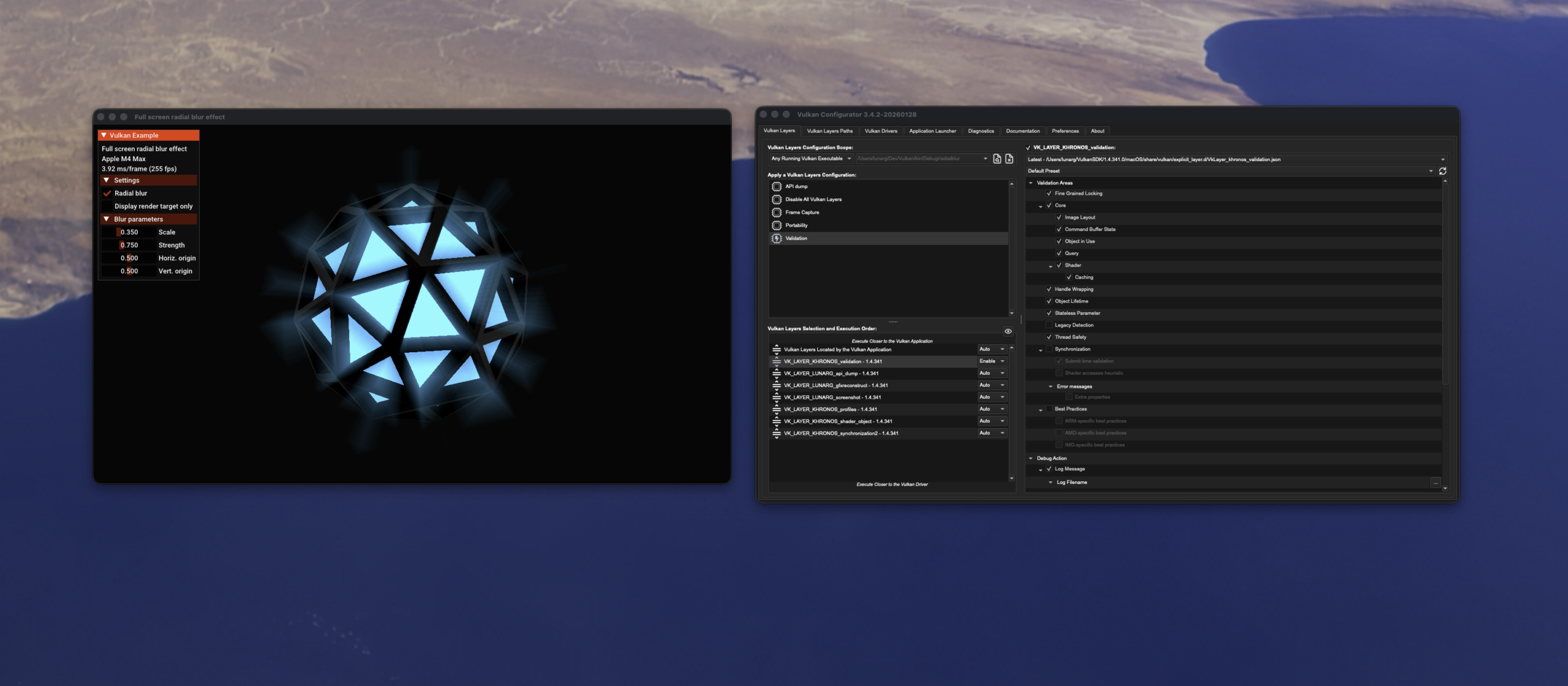
The easiest way to make use of Vulkan Layers during development on desktop platforms is to use the Vulkan Configurator. More information about the Vulkan Configurator can be found here. Validation layers typically send their diagnostic output to stdout or stderr and the Vulkan Configurator will automatically capture this output when your application is launched from the Vulkan Configurator application. In addition, any layer settings can be easily inspected and edited in the Vulkan Configurator live (you will have to stop and restart your application when settings change however).
Packaging Layers
Some layers may be useful to include with your distributed application, as they may provide feature emulation (eg. Shader Objects or Synchronization2). Diagnostic layers such as the Khronos Validation layer or API dump layer may also be useful to run directly on an iOS device where the Vulkan Configurator cannot be used during development. In these cases, it is useful to embed the validation layer dynamic libraries directly in your application bundle. The libraries go in the /Frameworks folder along with the Vulkan Loader and the MoltenVK .dylib’s.
Alongside the /vulkan/icd.d library, you’ll add a /vulkan/explicit_layer.d folder and include the layer .json files.
					vulkan
        icd.d
            MoltenVK_icd.json
        explicit_layer.d
            VkLayer_khronos_validation.json
            VkLayer_khronos_shader_object.json
The relative library paths must be set appropriately as well. For iOS for example:
"Library_path": "../../Frameworks/VkLayer_khronos_validation.framework/VkLayer_khronos_validation",
And for macOS without a framework:
"library_path": "../../../Frameworks/libMoltenVK.dylib",
Activating the layers is not automatic as the layers are explicit and must be loaded programmatically. When your application bundle is packaged this way, vkEnumerateInstanceLayerProperties will see these layers present, and you can enable them at instance creation time by listing them in the ppEnabledLayerNames member of the VkInstanceCreateInfo structure.
Conclusion
The heir to the cross-platform graphics and compute programming throne is Vulkan. Vulkan is a fresh start after the OpenGL/OpenCL years, and is an ideal low-overhead “close to the metal” programming approach that also is highly portable across most platforms popular with today’s developers. MoltenVK is the current standard Vulkan on Metal solution with some minor missing functionality, and supports x86_64, iOS, and older operating systems. With KosmicKrisp, a Vulkan Layer on Metal is now a part of the Mesa 3D drivers and is the future of Vulkan on Apple, and will be able to move forward more quickly as a performant peer in the Vulkan driver space. KosmicKrisp is available now for the current macOS, and Apple Silicon based desktops.
If you are already an experienced Vulkan developer, moving to macOS or Apple hardware, then there are really only a few important points to note.
- MoltenVK provides “nearly conformant” Vulkan 1.4 for macOS, iOS, and tvOS for both Apple Silicon and x86_64 systems, and iOS; missing functionality is minor.
- KosmicKrisp is conformant with the Vulkan 1.3 specification (1.4 coming soon), and is available for Apple Silicon desktop systems now.
- You cannot use the Vulkan Loader or Validation Layers directly on tvOS (yet).
- You should bundle well-tested versions of both the loader and KosmicKrisp/MoltenVK libraries with your application, and not make use of a system-wide Vulkan Loader. This is counter to the norm on Windows and Linux.
Vulkan. It’s everywhere. Do the Math.